
Screen capture for Windows
Capture it.
Mark it up.
Share it.
Grab what’s on your screen, show what matters, then copy, save or share the picture. All in one desktop app.

How it works
Capture
Press Print Screen and choose what to grab.
Mark up
Add an arrow, a note or numbered steps.
Share
Copy, save or share the picture.
Capture modes
Grab just the part you need.
Select a region, a window or the full screen. Stitch a scrolling window into one picture, or drag across a wide view for a panorama. Use Grab Text when you only need the words.
Explore capture modes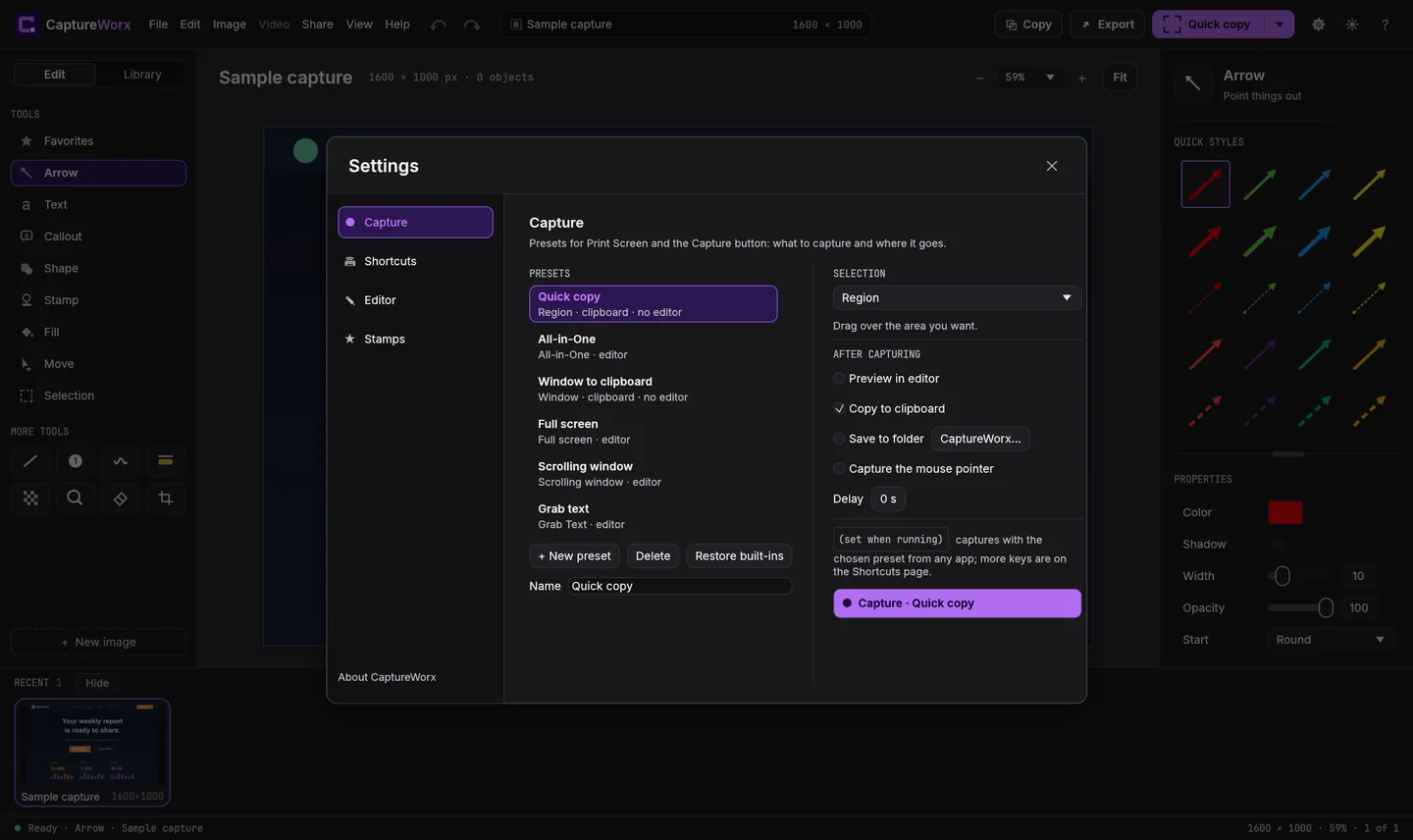
Markup tools
Point out what matters.
Point to a button, highlight a line or explain a fix with a callout. Number the steps in a how-to or blur a detail before you share. Quick Styles change the look in one click, and Favorites keeps your go-to styles handy.
Explore markup tools
History and presets
Pick up where you left off.
Find every capture in the history strip. Reopen a picture to move an arrow or fix a label. Use Quick copy to send a new capture straight to the clipboard, or All-in-One to open it in the editor.
Explore history and presets
System tray and shortcuts
Ready when you need it.
Let CaptureWorx start with Windows and wait in the system tray. Press Print Screen or set your own shortcuts. You can take a screenshot with the editor closed.
Explore shortcuts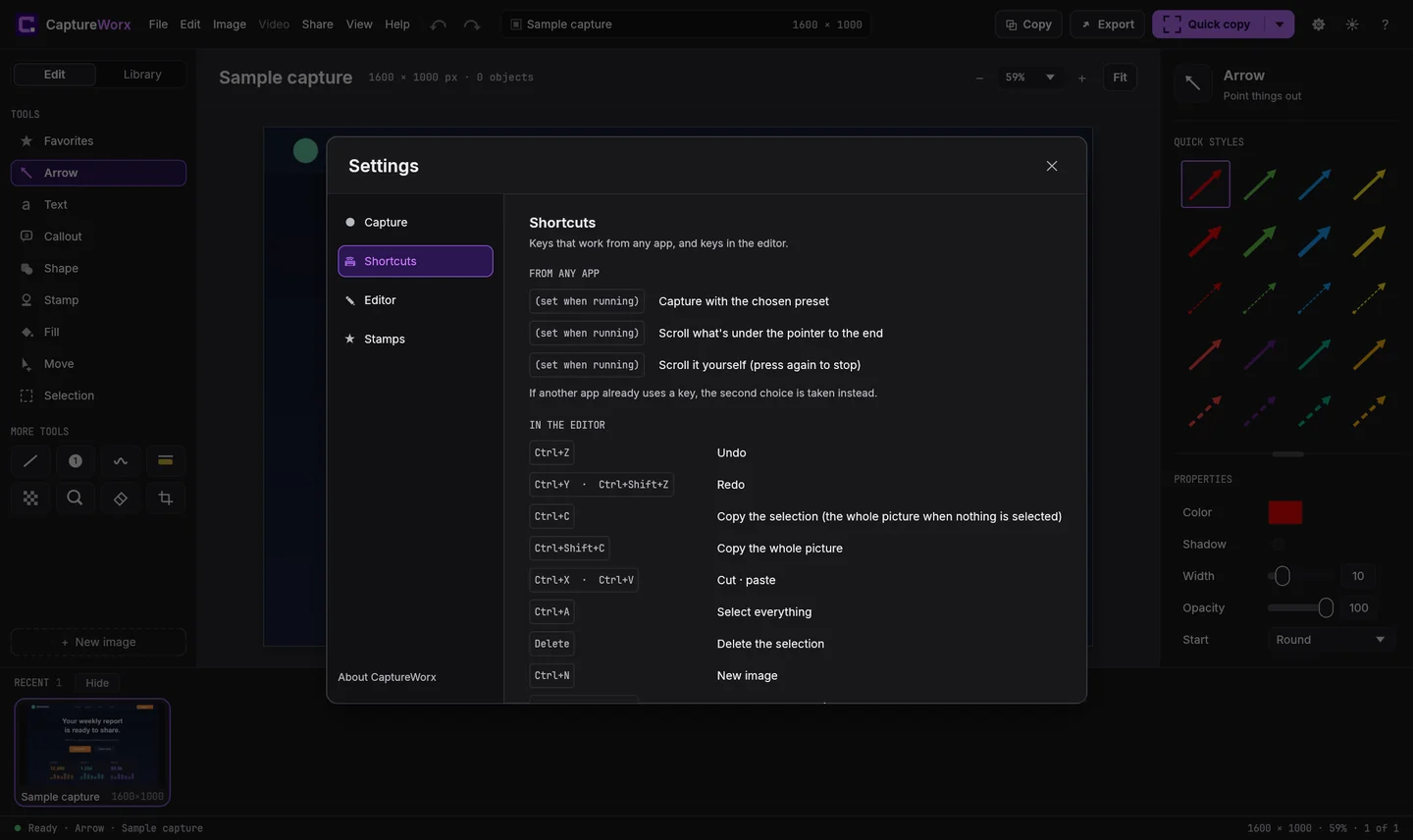
Get CaptureWorx for Windows
For bug reports, help articles and the quick screenshots you send every day.